
A pinned comment fixes one chosen comment to the top of a video’s comment feed, and YouTube allows exactly one per video at a time. Pin a new comment and it replaces whatever was there before. Creators use the slot for three jobs: correcting something in the video, pointing viewers somewhere with a clear call to action, or seeding the kind of comment that gets replies going.
TL;DR:
- Only the channel owner or someone with manager access can pin a comment, and it requires that the feature be enabled, which can take up to 24 hours.
- Pinned comments appear at the top of the full comment list but may not be visible in the initial preview on the watch page or in certain app layouts.
- Pinned comments should serve a clear purpose, such as correcting a mistake, providing a specific call to action, or engaging viewers with a targeted question to generate replies.
- You can only pin existing published comments; comments in the held-for-review queue must be approved before pinning.
- Effective pinned comments are specific, timely, and offer value, avoiding generic prompts or self-promotional plugs that tend to be ignored or disliked.
What a pinned comment is and how it behaves for viewers
When you pin a comment, YouTube tags it with a small “Pinned by” label and moves it to the top of the comments list, ahead of everything sorted by top or newest. Only the channel owner or someone with manager access on that channel can pin a comment. Regular moderators typically can’t pin unless you’ve granted them that level of access.
There’s only one pinned slot per video. If you already have a comment pinned and you pin a different one, the first one drops back into the regular feed and the new pick takes over the top spot, according to YouTube’s help documentation.
Where it shows up depends on how someone is watching. On a computer, the pinned comment appears right at the top of the full comments list with its label visible. On mobile, viewers have to tap to expand the comment section before they see anything, pinned or not, since the app only shows a preview on the watch page by default. That preview space is limited, so your pinned comment may not show in the shortened view even though it’s sitting first once someone opens the full list, per YouTube’s own guidance. On smart TVs and game consoles, comment sections tend to load in a simplified tile format, and pinned comments generally still appear first when a viewer chooses to browse comments at all, though the layout varies by app version.
How to pin, unpin, and change a pinned comment
Pinning takes seconds once you know where to look, but the exact steps differ slightly by device. Here’s how it works across the platforms creators actually use.
- On desktop: open your video, scroll to the comment you want, click the three-dot menu next to it, select “Pin,” and confirm the action.
- On mobile: tap to expand the comments section first (the preview won’t let you pin directly). Find your comment, tap the three-dot menu, choose “Pin,” and confirm.
- In YouTube Studio: go to the Comments section for that specific video, find the comment, click “More,” and select “Pin.” The pin option only shows up when you’re viewing comments tied to one video rather than the combined inbox, according to YouTube’s review and reply guidance.
- To unpin or swap: open the same three-dot menu on the currently pinned comment and select “Unpin,” or simply pin a different comment, which automatically bumps the old one, as confirmed by WikiHow’s step-by-step walkthrough.
One catch worth knowing before you go looking for the option: pinning requires access to advanced features on your channel, and that access can take up to 24 hours to activate after you turn it on. per YouTube Help. If the Pin button isn’t showing up, check your channel’s feature eligibility before assuming something is broken.
You can only pin a comment that’s already published. Anything sitting in your Held for Review queue needs approval first, a detail covered in the next section on moderation.
Visibility, notifications, and what to expect after pinning
A pinned comment doesn’t always show up where you’d expect, and that trips up a lot of creators the first time they try it. The watch page preview only has room for a few comments, so your pin might not appear there even though it’s live, according to YouTube’s documentation. Once a viewer opens the full comment list, though, it’s the first thing they see.
Mobile viewers need to tap to expand comments before any of this matters, since the collapsed preview doesn’t show the full thread or the pin label. On smart TVs and consoles, comment browsing is less common to begin with, and the tile-based layout means pinned comments show up first, only when someone actively opens that section.
Notifications are where things get murky. Whether the original commenter gets alerted that their comment was pinned depends on their own notification settings, and it doesn’t always trigger an alert the way a reply or a heart does, based on YouTube’s policy notes. That’s a meaningful difference: hearting a comment almost always shows the commenter a little red heart icon instantly, while a pin might go unnoticed by the commenter until they happen to scroll back. If your goal is to make a fan feel recognized, pairing a pin with a direct reply or heart covers both bases.
YouTube rules and moderation considerations when pinning
Pinning a comment doesn’t exempt it from YouTube’s rules, and ignoring that can cost you more than a flagged comment. YouTube’s spam and fake-engagement policies prohibit comments that solicit manipulative or incentivized engagement, and that applies whether the comment is pinned or buried in the feed, according to YouTube’s spam policy. A pinned comment that tells viewers to like and subscribe in exchange for a prize, or that links out to a deceptive third-party site promising followers, crosses into territory that can trigger a strike against your channel.
Encouraging real engagement is fine. The line gets crossed when the ask becomes coercive, templated, or tied to a reward, which YouTube treats as an attempt to inflate metrics artificially rather than a genuine invitation to participate, per the same policy. A pinned comment asking “What would you want us to cover next?” invites a real response. One offering a giveaway entry for every comment does not.
You can only pin comments that are already published, which means anything sitting in your Held for Review queue in YouTube Studio needs your approval first, as noted in YouTube’s review and reply help page. This matters for channels with comment moderation filters turned on, since a comment can look ready to pin in your notifications but still be waiting in that queue.
Setting channel guidelines ahead of time gives first-time viewers a sense of what kind of comment behavior you expect and encourage, which cuts down on the moderation work you’d otherwise do comment by comment. A pinned comment that reflects those guidelines, rather than contradicting them, reinforces the tone you’re trying to build across the whole channel.

Practical strategies: what to pin and when
The best pinned comments do one job clearly instead of trying to do five things at once. A few formats consistently outperform generic “thanks for watching” filler:
- A quick correction or “EDIT” note when you misspoke or got a fact wrong in the video.
- A short call to action pointing to a specific playlist or follow-up video, not just “check out my channel.”
- A preemptive answer to the question you know is coming, which cuts down on repeat questions in the thread.
- Timestamp links to key moments, especially useful on longer or tutorial-style videos.
- A poll-style prompt like “Which of these two formats do you want next?” that invites a one-word reply.
- A shoutout pulled from an earlier video’s comments, which rewards the commenter and signals that you actually read replies.
Wording matters more than people think. “What’s one thing you’d change about this setup?” gets replies because it’s specific and easy to answer in a sentence. “Let me know what you think!” gets ignored because it asks nothing in particular.
Timing is a real decision, not an afterthought. Pinning immediately at publish guarantees every early viewer sees your chosen comment, which is useful for corrections or context you want established right away. Waiting an hour or two lets you pin an actual viewer comment that’s already getting traction, which tends to read as more authentic and can pull in more replies than something you wrote yourself. The tradeoff is that your first wave of viewers misses whatever you’d have pinned.
Pro Tip: Check your pinned comment’s reply and like count against a few recent videos; if it’s underperforming, the ask is probably too vague or too demanding.
Measuring whether a pin is working doesn’t require anything complicated. Watch the reply count on that specific comment, compare likes against your channel’s typical range, and if you included a link, check whether click activity shifts after you pin it. Our guide to comment strategies for community building covers more ways to read these signals over time.
How to surface and earn comments worth pinning
Getting a comment worth pinning usually starts before anyone comments at all. Ask something specific in the video itself, on screen or in your script rather than a generic “comment below.” A line like “tell me in the comments which method you’d try first” gives viewers an actual prompt instead of an open-ended void.
Once comments start coming in, here’s a simple workflow to find the one worth promoting:
- Open YouTube Studio and check both the Published and Held for Review tabs for that video, since a strong comment can sometimes land in moderation.
- Approve anything held that fits your guidelines before you consider pinning it, since unpublished comments can’t be pinned.
- Heart or reply to a handful of comments beyond the one you pin, since that signals you’re reading the thread and encourages more people to write something worth noticing.
Avoid the shortcut of templated bribery, offering shoutouts or prizes for comments, since that edges toward the incentivized engagement YouTube’s spam policy discourages. Genuine recognition, a reply that references what someone said, or a follow-up video that credits a viewer’s suggestion, tends to produce better comments over time than any giveaway.
How faceless creators should build pinned comments into their workflow
Faceless channels don’t have a host’s face or voice to carry personality into the comments, which makes the pinned comment one of the few places your channel actually “speaks” directly to viewers. Treating it as an afterthought wastes that slot.
A workable process looks like this: draft two or three candidate pinned comments as part of your publishing checklist, whether written manually or generated as part of your script and title workflow, and hold off on picking a winner until you’ve seen how the first wave of viewers reacts. Watching engagement in the first hour or two after publish tells you more about which comment will land than guessing in advance.

A specialized toolkit for faceless creators fits naturally into that process since it handles title, script, and description drafting in one workflow. Using the same system to draft pinned-comment candidates alongside your other publishing copy keeps your channel’s voice consistent without adding a separate step. Explore the full AI YouTube Tools for Faceless Creators to see how it fits your pipeline.
What actually works, and what backfires
I’ve seen a pinned comment do more work than the video description ever could. One channel I watched pinned a simple question, “Which part was confusing?”, and the replies turned into a running FAQ that cut down repeat comments for weeks.
The opposite happens too. A pinned comment that’s just a self-promotional plug, with no question and no value to the viewer, tends to get buried in dislikes or ignored outright. The lesson holds steady: a pin earns attention when it gives the viewer something to do, not when it just asks for something back.
— Arnas
Let Voclify handle the busywork around your comments
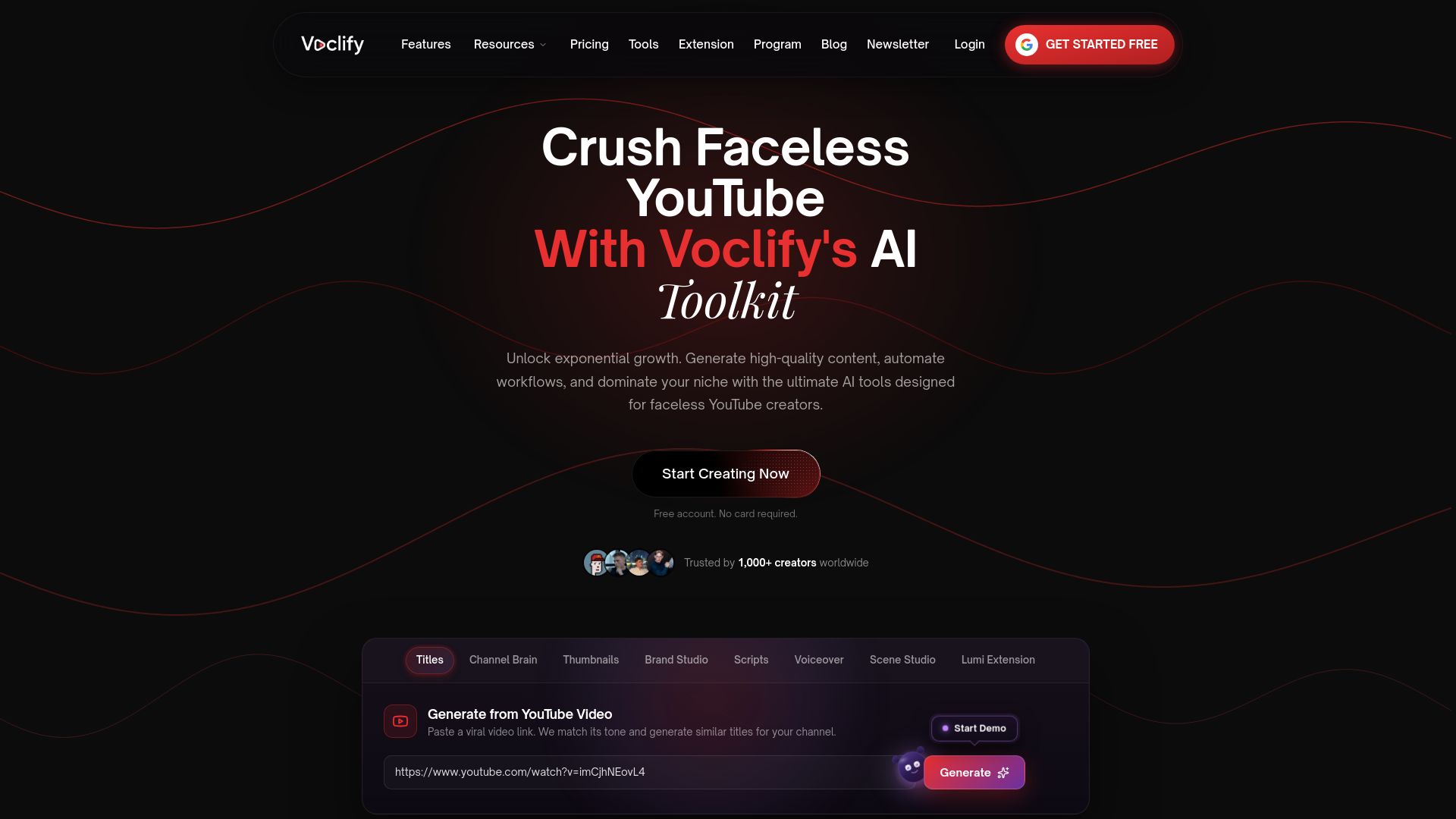
Drafting a sharp pinned comment is easy once; doing it consistently across every upload on a faceless channel is where most creators fall behind. Voclify’s toolkit generates titles, scripts, and short-form copy in the same workflow, so writing a pinned-comment candidate takes the same few seconds as finishing your description.
If you’re managing a channel on your own or juggling several, the Starter, Growth, and Studio plans give you tools built around the faceless publishing routine instead of a generic content calendar. Creators who want more hands-on guidance on running a faceless channel end to end can look at the YouTube Faceless Operator Program for a more structured path.
FAQ
What does it mean when a YouTube comment is pinned?
A pinned comment is one the channel owner has chosen to fix at the top of the comments list, marked with a small “Pinned by” label. It stays there until the creator unpins it or pins a different comment, which automatically replaces it, according to YouTube’s help documentation.
What happens when your comment gets pinned?
Your comment moves to the top of the full comments list and gains visibility that most comments never get, though it may still not appear in the shorter preview area shown on the watch page. You might not receive a notification about it, since that depends on your own notification settings rather than anything automatic, per YouTube’s policy notes.
Why do people want their comments pinned on YouTube?
Getting pinned puts a viewer’s words in front of everyone who opens the comments, which reads as a form of recognition from the creator. For creators, pinning a viewer’s comment rewards engaged community members and tends to encourage more thoughtful comments going forward.
How do I get a comment pinned on YouTube?
Open the comment section on your own video, click the three-dot menu next to the comment you want, and select “Pin,” then confirm the action. In YouTube Studio, the same option appears under “More” when you’re viewing comments for that specific video, as outlined in YouTube’s review and reply guidance.
Sources
- Post & interact with comments - Computer - YouTube Help
- Review & reply to comments - Computer - YouTube Help
- How to Pin a YouTube Comment to the Top (WikiHow)
Recommended

Get more of this in your Google results
Add voclify.io as a preferred source and Google shows you more of our articles in Search and AI Mode.


