Captions transcribe all audible information — speech plus sound effects, music cues, and speaker changes — for viewers who cannot hear the audio. Subtitles usually show spoken dialogue only, translated for viewers who can hear fine but don’t speak the language. On YouTube, that means adding human-reviewed captions for accessibility and separate translated subtitles when you want to reach international audiences.
TL;DR:
- Auto-generated captions require human review to meet accessibility standards, especially for non-speech sounds and speaker changes.
- Using captions instead of subtitles ensures deaf and hard-of-hearing viewers access all audio cues and non-verbal sounds.
- Closed captions are toggleable and supported by most platforms, while open captions are burned into the video for fixed visibility.
- Proper formatting and labeling of speakers, sound effects, and non-speech audio are essential for effective and usable captions.
- Automated tools facilitate fast drafting but still require manual editing for accuracy, especially with technical, medical, or legal content.
Captions vs subtitles: how they actually differ
Here’s where most creators get tripped up: captions and subtitles solve different problems for different audiences, even though YouTube’s interface lumps them under one “Subtitles” tab. Captions serve deaf and hard-of-hearing viewers, so they include everything needed to follow the video without sound. Subtitles serve viewers who can hear the audio but don’t understand the language, so they typically skip non-speech details.
- Captions include speaker labels, sound effects, and music descriptions alongside dialogue.
- Subtitles generally transcribe spoken words only, translated into another language.
- Platform terminology often blurs the line, but the W3C Web Accessibility Initiative treats captions as a distinct accessibility requirement, not a stylistic choice.
Knowing which one you’re actually building determines whether your video meets accessibility standards or just adds convenience.
Open, closed, and SDH: the formats you’ll run into
Captions come in a few flavors, and picking the right one affects both viewer experience and file compatibility. Closed captions can be toggled on or off by the viewer, which is what YouTube uses by default. Open captions are burned into the video permanently, useful for social clips where viewers won’t hit a toggle.
- Closed captions: viewer-controlled, standard for YouTube’s caption tracks.
- Open captions: always visible, common for Shorts and Reels-style content.
- SDH (subtitles for the deaf and hard of hearing): a hybrid format built for streaming platforms that includes accessibility details in a subtitle track.
- File formats: SRT is simple and widely supported, WebVTT adds styling and positioning, and SCC is a broadcast-legacy format you’ll rarely need for YouTube uploads.
For most creators, WebVTT or SRT covers everything YouTube Studio expects.
Why captions matter beyond accessibility
Captions aren’t just a compliance checkbox. The W3C states that automatic captions typically don’t meet accessibility requirements unless someone confirms they’re fully accurate, and that non-speech audio has to be included for a caption track to count as truly accessible. Plain same-language subtitles that skip sound cues often fail that bar entirely.
Auto-generated captions require human review before they satisfy accessibility standards, according to W3C WAI guidance, because machine transcription reliably misses non-speech cues and speaker changes. That matters for reach too. Viewers who watch with sound off, whether they’re on a commute or in a quiet office, rely on captions to follow along, and YouTube’s discovery systems can also pull from your caption text when indexing content.

Adding captions and subtitles inside YouTube Studio
YouTube’s own workflow is straightforward once you know where to look. Auto-captions generate automatically for most videos, but they’re a starting point, not a finished product.
- Open YouTube Studio, select your video, and go to Subtitles.
- Choose “Add language,” then select the language you’re captioning or subtitling for.
- Pick “Add” under Subtitles to upload a file or use auto-sync with a transcript.
- Review the auto-generated draft for accents, background noise, and mispronunciations that commonly trip up YouTube’s automatic captioning.
- Upload a separate SRT or WebVTT file if you’re adding translated subtitles rather than relying on auto-translate, since auto-translate works from your original caption text and can introduce its own errors.
YouTube Help documents this exact flow and notes that caption files carry timestamps plus optional styling and position data.
Pro Tip: Run a quick playback with sound off before publishing. If you can’t follow the story from captions alone, neither can your accessibility audience.
Choosing captions or subtitles for your specific goal
The right choice depends on what you’re solving for, not on habit.
- Use captions when accessibility, compliance, or noisy-environment viewing is the goal.
- Use translated subtitles when you’re trying to reach non-native speakers or grow international audience share.
- Don’t assume same-language subtitles satisfy an accessibility requirement. Practical explainers note that dialogue-only subtitles frequently fail accessibility audits because they drop the non-speech information deaf and hard-of-hearing viewers depend on.
- For educational or informational channels, captions should be the default track, with subtitles layered on top for specific language markets.
Get this wrong and you either shortchange accessibility or waste effort translating a track nobody needed translated.
Formatting rules that make captions actually usable
Good captions follow a few unglamorous but critical rules. Break lines at natural phrase boundaries instead of mid-clause.
- Label speakers when more than one person is talking, especially in interviews or podcasts.
- Describe non-speech audio like “[door slams]” or “[tense music]” when it affects understanding.
- Check YouTube’s “Don’t show potentially inappropriate words” setting if you need profanity masking in auto-captions, a feature YouTube Help documents directly.
- Spot-check sync at multiple points in the video, not just the opening seconds.
For translated subtitles, always route machine translation through a human reviewer. Sound design choices that keep dialogue clean also reduce errors at the transcription stage, before translation even starts.
Pro Tip: If your video touches medical, legal, or technical claims, a mistranslated or misheard word can change the meaning entirely, so budget time for a manual pass regardless of how good the automated draft looks.
Speeding up the pipeline without skipping the review step
Manually transcribing every video doesn’t scale once you’re publishing regularly. A practical workflow looks like this: generate a draft transcript, format it into SRT or WebVTT, then have a human edit it before upload. Tools built for faceless YouTube creators can handle the first two steps quickly, cutting the drafting time that used to eat hours per video.

The part that still needs a person: preserving speaker labels and non-speech audio cues that automated tools tend to flatten out. Draft fast, then edit for the details that make a caption track actually accessible.
Where automation helps and where it can’t replace judgment
Automation buys you time, not accuracy. It can draft a transcript in minutes, but it can’t decide whether a sound cue matters or whether a translated phrase lands correctly in context. I’d prioritize human editing whenever the stakes are high: policy risk, educational claims, or anything a viewer might act on.
— Arnas
A faster way to draft your caption files
Some toolkits for faceless creators include draft transcript generation and export to SRT and WebVTT, which trims the manual typing out of your captioning workflow. It won’t replace the human review your accessibility and translation quality still need, but it gets you a usable starting point fast.
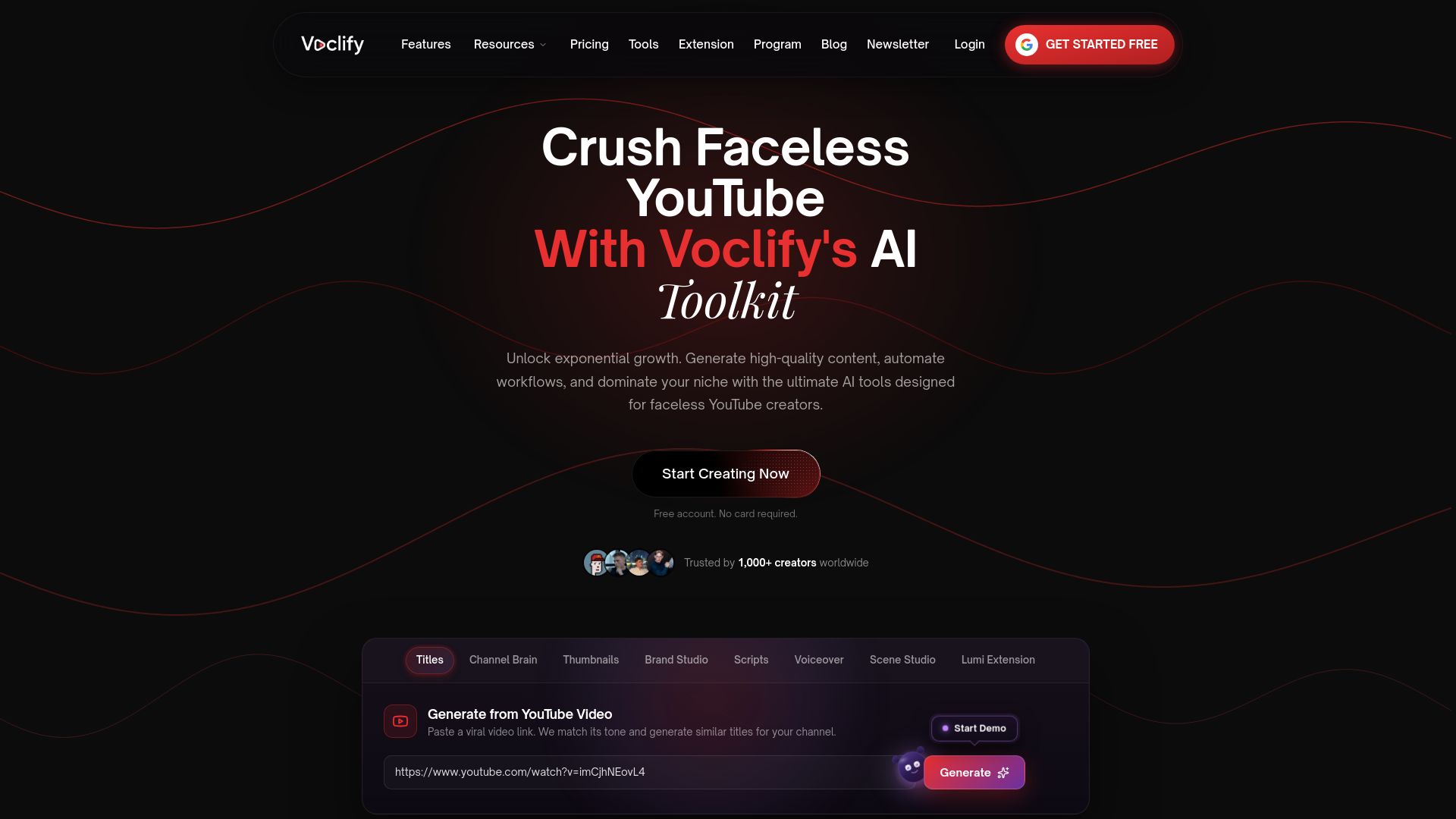
If you’re managing multiple channels and want to see how automated drafts fit into a broader production workflow, check out the Voclify tools overview or explore the Starter, Growth, and Studio plans starting at $20 per month.
Where these guidelines come from
This article draws on YouTube’s official captioning help, W3C accessibility guidance, and practical format comparisons from Rev and LiveAPI.
Sources
- Captions/Subtitles | Web Accessibility Initiative (WAI) | W3C
- Closed Captions vs. Subtitles: What’s the Difference? - Rev
- Closed Captioning vs Subtitles: Key Differences for Developers - LiveAPI Blog
FAQ
Is there a difference between captions and subtitles?
Yes. Captions include speech and non-speech audio information for viewers who cannot hear the video, while subtitles usually transcribe dialogue only, often translated for viewers who can hear but don’t understand the language.
Is it worth adding subtitles to YouTube videos?
Translated subtitles can help you reach non-native speakers and grow international viewership, since they open your content to audiences who wouldn’t otherwise understand the dialogue. They work best alongside, not instead of, proper accessibility captions.
Why do I have captions on YouTube?
YouTube generates automatic captions for most uploaded videos by default, using machine transcription of your audio. YouTube’s own documentation notes these auto-captions can misrepresent speech due to accents or background noise, so review is recommended.
Is it better to have subtitles on or off?
That depends on the viewer’s environment and needs: viewers in noisy or sound-off settings benefit from having captions on, while viewers who don’t need them can toggle closed captions off. Open captions, by contrast, stay visible no matter what.
Recommended

Get more of this in your Google results
Add voclify.io as a preferred source and Google shows you more of our articles in Search and AI Mode.