
YouTube community management is the ongoing work of moderating comments, designing conversation, and measuring engagement to turn casual viewers into loyal subscribers. Start today by setting your comment moderation to Basic, adding a blocked-words list, and putting a 15-minute comment review on your calendar. If your channel qualifies for Communities, turn it on.
TL;DR:
- Using the Basic moderation setting helps prevent spam while allowing enough flexibility for most channels under 10,000 subscribers.
- Regularly reviewing held comments and updating blocked-words ensures the comment section stays healthy and free of new spam patterns.
- Engaging viewers with pinned questions, polls, and live streams fosters a sense of community that encourages repeated participation.
- Tracking comment-to-viewer ratio, return viewers, and subscriber retention provides more accurate signals of community health than feelings alone.
- Automating routine responses and summaries supports growth at scale without losing the personal voice, especially for creators managing multiple channels.
What Youtube Community Management Actually Covers
Community management on YouTube is bigger than replying to comments. It spans six overlapping jobs: comment moderation, conversation design (the questions and posts you plant to spark discussion), community channels like Posts and the newer Communities feature, live interactions during premieres and streams, membership management for paying subscribers, and the measurement work that tells you whether any of it is paying off.
Skipping this work has a cost you can see in your numbers. Channels that actively moderate comments and run consistent community features tend to show stronger viewer retention and steadier growth than channels that treat comments as an afterthought. That’s not a coincidence. A comment section that feels alive pulls new viewers into watching longer, and returning viewers are the audience YouTube’s algorithm rewards most.
Where should this sit in your weekly workflow? Sooner than most creators think.
- If you publish weekly, community work deserves its own time block, not leftover minutes after editing.
- If your channel is under 10,000 subscribers, focus first on moderation defaults and reply speed. Growth tactics can wait.
- If you’re past 10,000 subscribers, add Community Posts, polls, and membership perks to the rotation.
Essential YouTube Studio Features Every Creator Should Know
Your Comments tab in YouTube Studio splits into Published and Held. The Held tab is where flagged comments sit until you approve, remove, or ignore them, and YouTube’s own comment summary tools cluster comments by topic so you can scan sentiment on a 500-comment video in under a minute instead of scrolling forever.
Your moderation defaults do the heavy lifting before you even open the app. YouTube gives you four levels, and picking the wrong one either buries you in a manual queue or lets spam run wild:
- None: Everything posts instantly, no filtering. Rarely a good idea past a few hundred subscribers.
- Basic: YouTube’s automatic spam and likely-inappropriate-content filters apply. This is the sensible default for most channels.
- Strict: More aggressive filtering, useful for channels dealing with coordinated harassment or heavy spam waves.
- Hold all: Every comment sits for manual approval. Reserve this for sensitive content or a launch you expect to attract bad-faith attention.
Beyond the default level, YouTube’s Community settings let you maintain a blocked-words list, hide specific users without a full ban, hold comments containing links, and add moderators by channel URL. The Community/Posts tab and the newer Communities feature work similarly for post moderation, letting you control who can post, require a minimum subscription age before someone can comment, and choose between polls, images, and pinned text posts. A tool like comment strategy guides can help you map which setting fits your channel’s risk level.
A Weekly Moderation Checklist You Can Start Today
Turning platform settings into habit is what separates channels with a healthy comment section from ones drowning in spam. Here’s the cadence that works without eating your whole week:
- Before you publish: Confirm your moderation default is set, your blocked-words list is current, and any co-moderators have the right permission level.
- First 1 to 24 hours after publish: Reply to the earliest substantive comments, heart a handful, and pin your favorite question or comment to seed discussion.
- Weekly: Clear the Held queue. This matters more than it sounds. Held comments can auto-delete after roughly 60 days, so a review you skip for two months can quietly erase legitimate viewer contributions along with the spam.
- Weekly, same session: Update your blocked-words list with new spam patterns and refine any phrase that’s generating false positives.
- Monthly: Audit moderator activity, check whether your Strict setting is catching too much or too little, and revisit your community guidelines wording.
Standard moderators can approve or remove held comments, hide users, and manage the blocked-words list. Only the channel owner and moderators marked as “can manage” get access to broader settings like changing the default moderation level or adding new moderators. Know that distinction before you hand someone the keys.
Pro Tip: Write your blocked-words list in short phrases instead of single words. A phrase like “check my page” catches spam far more reliably than blocking the word “check” alone, which flags legitimate comments too.
How to Turn Viewers Into an Actual Community
Comments are the entry point, but a community grows through repeated, low-friction invitations to participate. A few tactics do most of the work:
- Post a welcome message or a simple poll the day before a big upload. It gives your audience something to respond to that isn’t just “great video.”
- Pin an open-ended question as the top comment on every video. This one habit meaningfully lifts early conversation volume and gives the algorithm a signal that the video is generating engagement in its first hours.
- Run live streams regularly, even short ones, and repurpose the best moments into Community Posts or Shorts afterward.
- Reward your most active members with shoutouts, custom emoji, or early access through YouTube’s membership perks. Recognition costs you nothing and builds loyalty that a generic reply never will.
- Build an off-platform space, whether that’s a Discord server or an email list, as insurance against algorithm shifts. YouTube’s Community and Posts tools are strong, but they still live on a platform you don’t control.
Which Metrics Actually Show a Healthy Community?
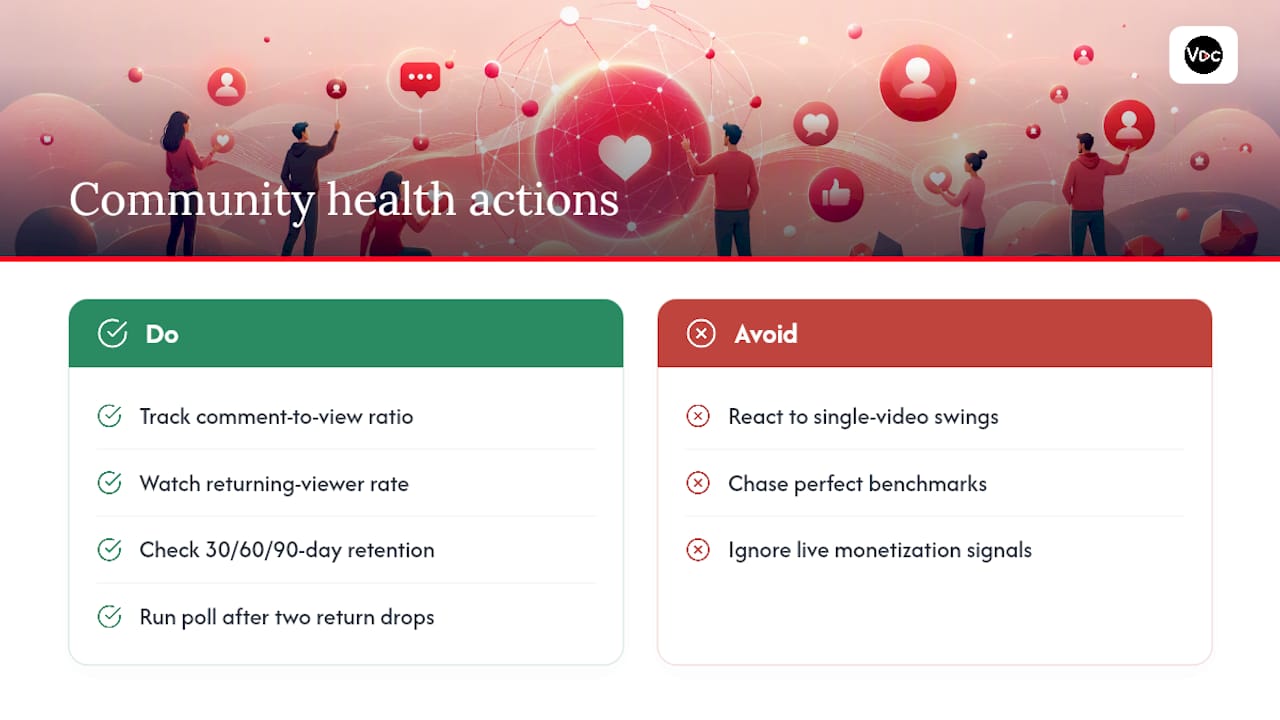
Five numbers tell you more than any gut feeling about how your community is doing: comment-to-view ratio, return-viewer rate, subscriber retention at the 30, 60, and 90-day marks, Community Post engagement rate, and Super Chat or Super Thanks volume during live content.
You’ll find most of these across the Engagement and Audience tabs in YouTube Analytics, with return-viewer data specifically under the Audience tab’s “returning viewers” card. Broader research on social platform behavior backs up what your dashboard already suggests: audiences that engage repeatedly with a creator are the ones a platform keeps recommending that creator to.
Set simple benchmarks rather than chasing perfection. If your comment-to-view ratio holds steady but return-viewer rate drops for two videos in a row, that’s your signal to run a poll or Community Post to re-engage lapsed viewers before the slide continues. Tracking these trends over a few months, rather than reacting to single-video swings, gives you a far more reliable read on channel health. Our guide on audience retention strategies breaks down how to interpret shifts in these numbers video by video.
Where Automation Fits Without Losing Your Voice
Manual moderation doesn’t scale past a certain comment volume, but full automation risks a comment section that sounds like a bot wrote it. The fix is a hybrid: automate the repetitive parts, keep judgment calls human.
- Build 5 to 10 reply templates for your most common comment types, then edit each one slightly before sending so it still sounds like you.
- Set up a priority queue that surfaces business inquiries and detailed feedback above generic praise.
- Use comment summaries to spot theme shifts in a video’s reaction without reading every single entry.
- Keep blocked-words updates and conflict escalation as human tasks. Judgment calls don’t automate well.
This is roughly the workflow a tool like Voclify’s toolkit is built to support for faceless channels managing multiple videos a week: templates and priority sorting first, summaries second, with a standing weekly human review to catch anything automation missed.
What I’ve Learned About Keeping a Community Alive Without Burning Out
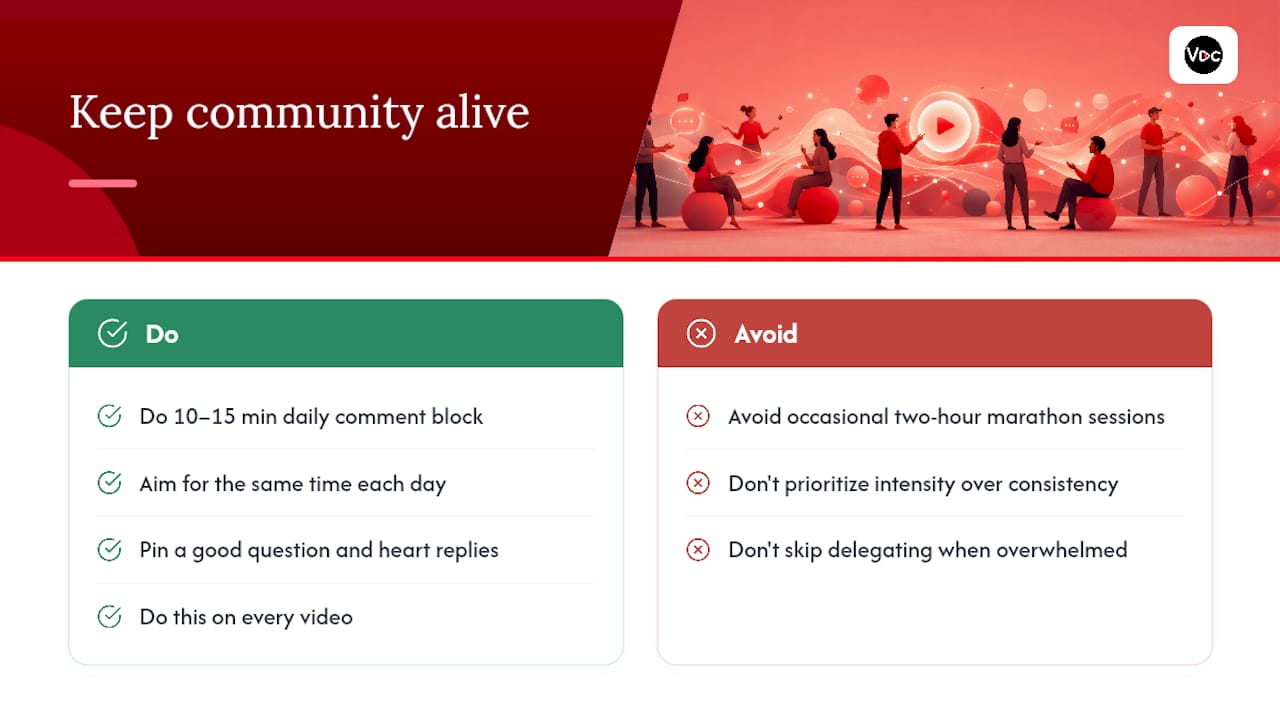
A 10 to 15 minute comment block, done at the same time each day, beats an occasional two-hour marathon session. Consistency is what compounds, not intensity. Pinning a good question and hearting the first few replies takes seconds, but do it on every video and your comment section develops a rhythm regular viewers start to expect.
The honest part nobody says enough: you will hit weeks where you can’t keep up, and that’s exactly when delegating moderation to a trusted co-manager protects both your sanity and your comment section’s quality.
— Arnas
Automate the Busywork, Keep the Human Touch
Voclify is built for exactly the situation this guide describes: a faceless creator who wants consistent brand voice and fast turnaround without spending every evening buried in comment threads and content prep. The platform’s suite of AI tools handles scripts, titles, thumbnails, and channel branding alongside workflow automation, so the same consistency you bring to moderation shows up in your video output too.
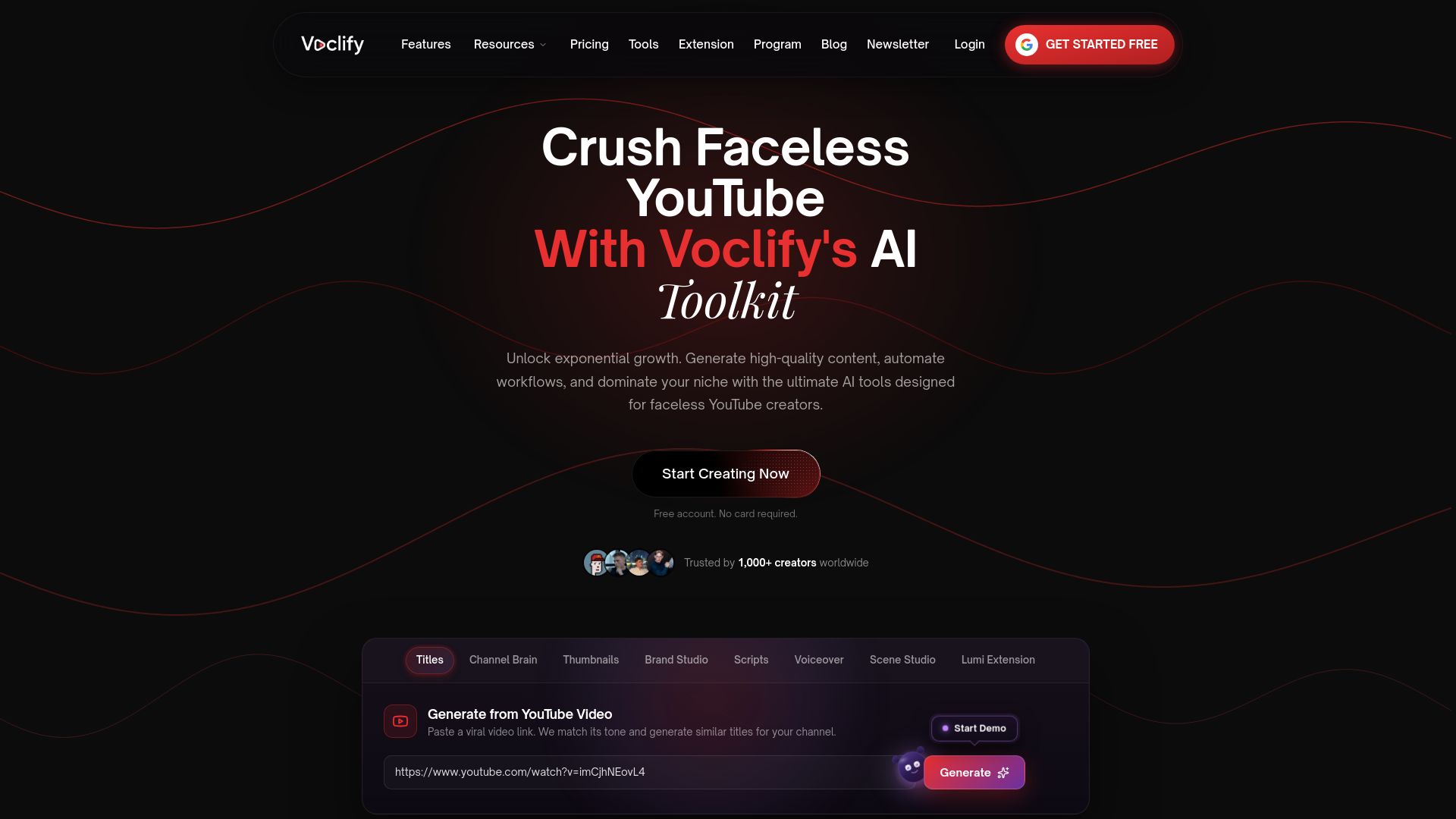
It fits creators running one channel solo, small teams managing several faceless channels at once, and anyone scaling engagement without scaling their hours worked. If you want the moderation habits in this guide backed by production tools that keep pace, start with the Starter plan at $20 a month and see which of the 13 tools saves you the most time in week one. Creators who want a full operational playbook alongside the toolkit can look at the YouTube Faceless Operator Program for a more structured path.
Sources
- Americans’ social media use in 2025 – Pew Research Center
- YouTube tests new warnings on potentially harmful comments and auto-deletion reporting – SocialMediaToday
FAQ
What Is the 7-Second Rule on YouTube?
Viewers decide within the first few seconds of a video whether to keep watching, making a strong hook essential before community tactics like pinned comments even come into play. It’s a production concept more than a community-management one, but the two connect: a video that holds attention longer gives your pinned question more time to be seen and answered.
Can I Hire Someone to Manage My YouTube Channel?
Yes. Many creators bring on a co-manager or virtual assistant specifically for comment moderation, Community Posts, and reply templates, especially once daily comment volume outgrows a 15-minute block. Standard moderator permissions let you grant this access without handing over full channel ownership.
How Does the YouTube Community Work?
YouTube’s Community features let subscribers interact through comments, polls, and posts outside of individual videos, with creators controlling moderation through settings like blocked words, held comments, and assigned moderators. The Communities feature extends this with dedicated post types and rules for who can participate based on subscription length.
How Do I Access the Community Tab on YouTube?
You’ll find Community settings inside YouTube Studio under the Community tab, where you manage comments, blocked words, moderators, and posts. Eligible channels also see the option to enable Communities directly from that same settings area.
What’s the Best Way to Start Automating YouTube Community Management?
Begin with reply templates for your five most common comment types, then add a priority queue that flags business inquiries above general praise. Tools like Voclify are built around this kind of layered automation for faceless creators managing multiple channels at once.
Recommended

Get more of this in your Google results
Add voclify.io as a preferred source and Google shows you more of our articles in Search and AI Mode.