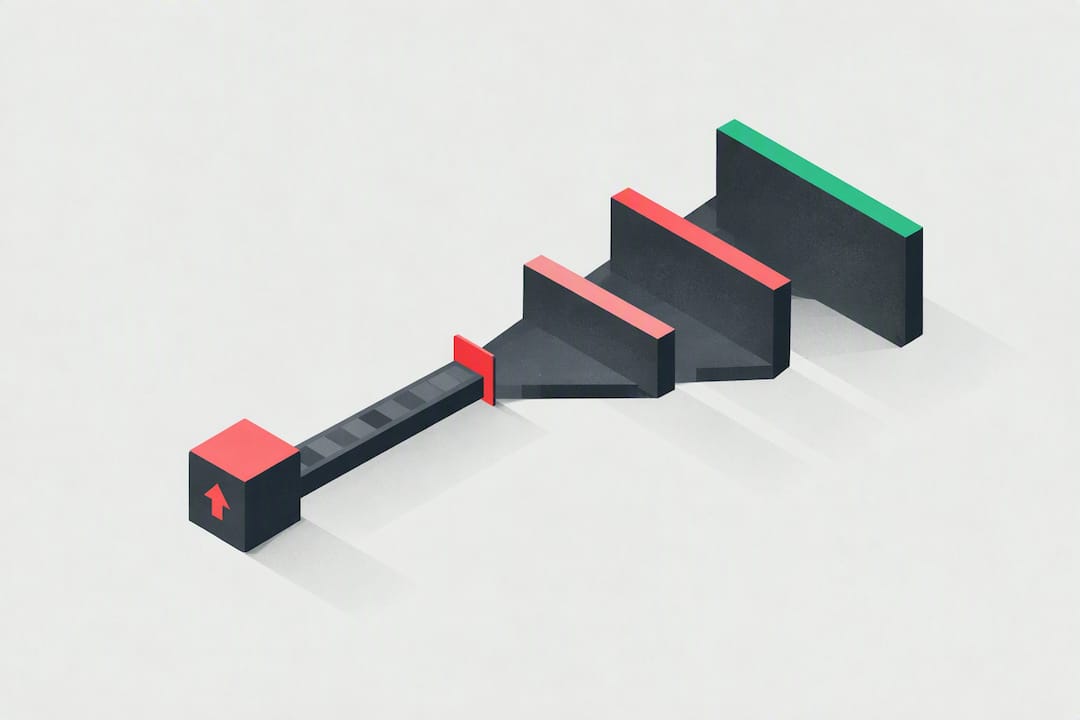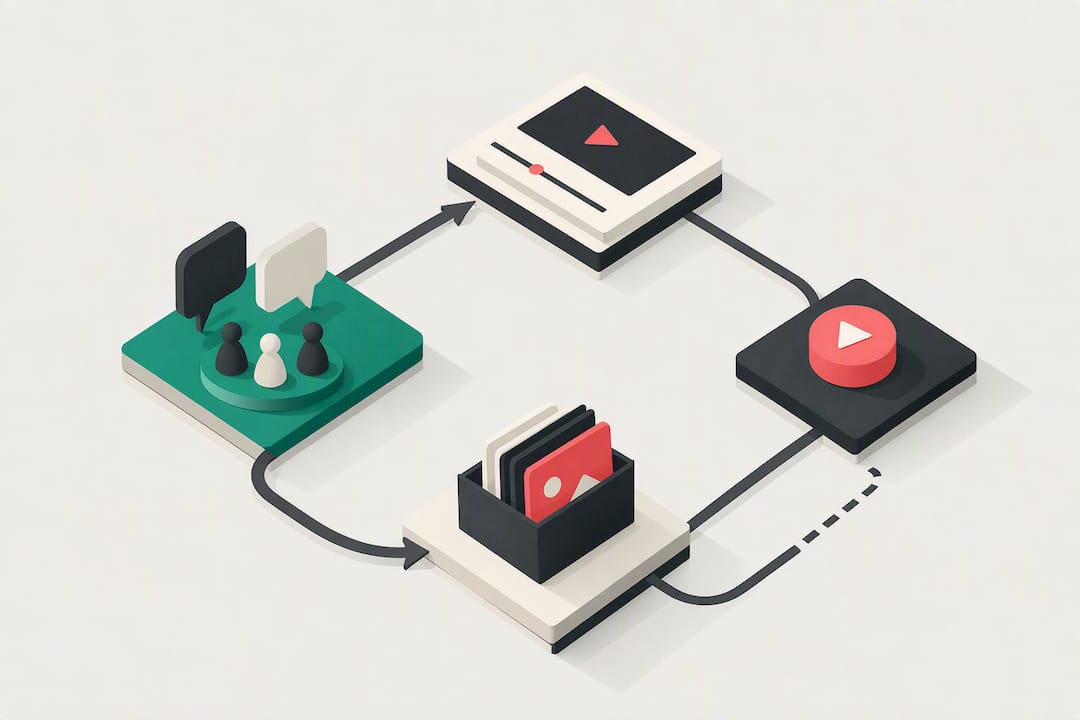
The Community Tab, officially called Posts, is YouTube’s built-in tool for reaching your subscribers without publishing a full video. Its job is simple: test ideas, tease launches, resurface old content, and pull real feedback from the people who already watch you. The fastest way to see the payoff is to run one poll or a two-image thumbnail test this week and watch what your audience actually clicks.
TL;DR:
- Running a poll or thumbnail test before filming guides the content creation process based on actual audience preferences, increasing engagement and relevance.
- Posting 3 to 4 times weekly, aligned with your upload schedule, fosters consistent audience interaction without causing notification fatigue.
- Using simple, targeted formats like choice polls, behind-the-scenes photos, or quick tips tailored to your audience’s demographics boosts participation and community feel.
- Responding early to comments and conducting audience-driven thumbnail testing can significantly improve response rates and click-through performance.
- Batch-creating posts with tools like Voclify accelerates content flow, especially for faceless channels, while maintaining a steady community presence.
Community Tab Ideas Organized Around Your Upload Cycle
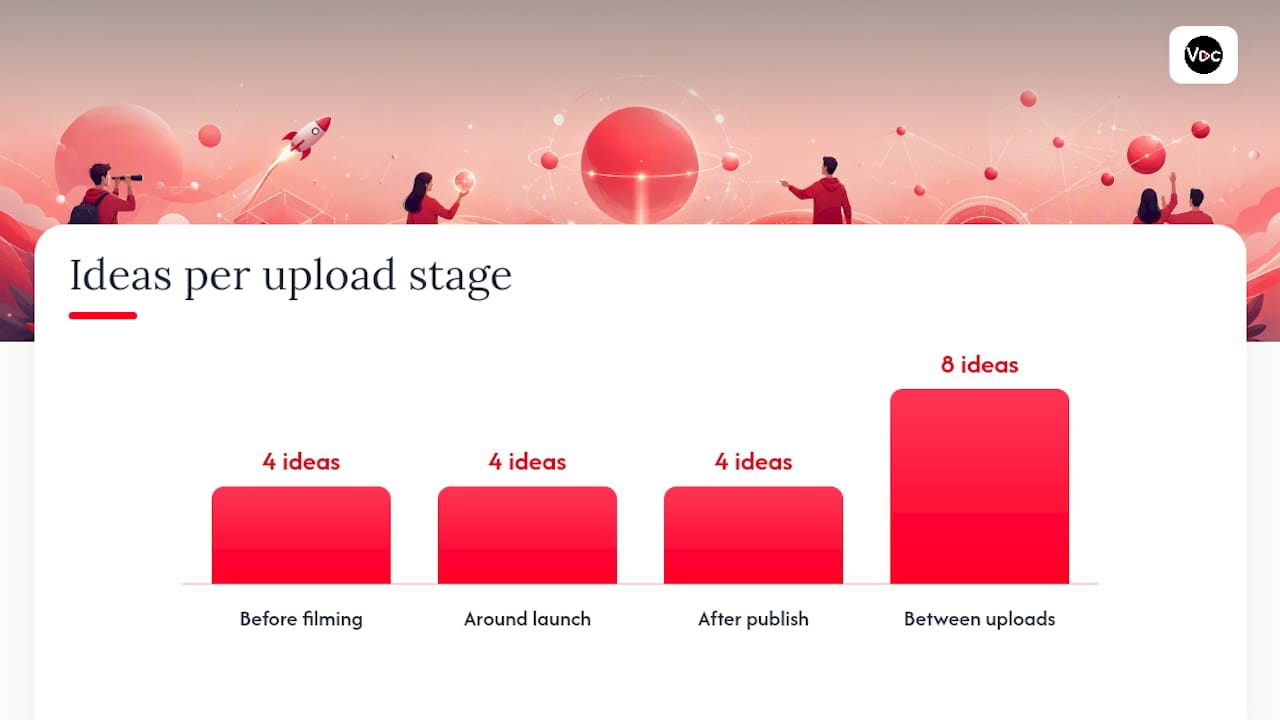
I’ve watched creators waste the Community Tab on random link dumps, then wonder why nobody engages. The fix is thinking in terms of the upload cycle, not just “what should I post today.” CreatorsJet’s framework organizes posts into three moments: before filming, around launch, and after publishing. I’ve added a fourth, the gaps between uploads, because that’s where most channels go quiet and lose momentum.
Before you film:
- Topic validation poll — “Which video should I make next: A or B?” Two options, one tap, real signal on what to build.
- Title direction vote — Post two possible titles and ask which one would make them click.
- Two-image thumbnail test — Upload two thumbnail concepts side by side and ask which grabs attention faster.
- Script direction question — “Should I cover the beginner mistakes or the advanced fixes first?”
Around launch day:
- Preview frame post — Share a single frame from the edit with a caption like “This drops tomorrow.”
- Countdown post — A simple “24 hours left” note with a teaser image.
- Hook-only teaser — Post the opening line of the video as text, no context, and let curiosity do the work.
- Release-day reminder — A GIF from the video paired with a one-line question about the topic.
After you publish:
- Targeted follow-up question — Ask viewers what part of the video they’d want expanded into its own episode.
- Viewer story request — “Has this ever happened to you? Tell me in the comments.”
- Resurfacing an older video — Post a thumbnail from a past upload with new context tying it to a current trend.
- Poll on what surprised them — A quick multiple-choice on which point in the video was new information.
Between uploads:
- Weekly tip post — One useful, standalone piece of advice related to your niche.
- Quiz post — Test viewer knowledge on a topic your channel covers regularly.
- Fan spotlight — Screenshot a great comment and thank the person by name (with permission).
- Mini-contest — “Guess the next topic and I’ll shout you out in the video.”
- UGC highlight — Share a fan’s recreation, reaction, or related content.
- Behind-the-scenes image — One photo from your setup with an honest, unpolished caption.
- This-or-that poll — Low-stakes, fun, and easy for lurkers to engage with.
- Milestone update — A short note when you hit a subscriber count or view milestone, thanking the audience.
Each of these has a job. Pick the ones that match where you are in your upload cycle instead of posting whatever comes to mind.
Which Post Format Should You Use and When?
Not every idea deserves the same format. Match the message to the mechanism:
- Polls with 2 options beat polls with 4, because a single tap converts far better than a menu of choices. Buffer’s research confirms polls generate the highest engagement of any post type precisely because they’re low friction.
- An image with one honest sentence almost always beats a generic promotional caption. A raw behind-the-scenes photo with a real thought attached outperforms a polished promo link because it feels human, not like an ad.
- Quizzes work best for educational or series-based channels where testing retention builds anticipation for the next episode.
- Video links need context. Dropping a bare link reads as lazy. Add one line explaining why they should click, and use this format sparingly.
How Often Should You Post on the Community Tab?
Consistency beats volume here. A few rules keep the tab useful instead of noisy:
- Aim for three to four posts per week, based on the cadence Buffer recommends for most channels.
- Limit posting to about one post per day to avoid notification fatigue.
- Match your posting rhythm to your upload schedule so posts support videos instead of competing with them.
- Batch your posts during a single weekly session rather than scrambling daily. Scheduling everything in YouTube Studio in one sitting removes the daily decision fatigue entirely.
CTAs, Replies, and Thumbnail Testing That Actually Convert
Three CTA templates cover most situations:
- Choice CTA: “A or B, drop your pick below.”
- Example CTA: “Comment your favorite tip, I’ll go first: [example].”
- Quick vote CTA: “Yes or no, one word.”
Reply strategy matters more than most creators think. Prioritize the first 10 to 15 replies on any post, since early responses set the tone for everyone who scrolls in after. Pin a strong reply to seed further discussion.
For thumbnail testing, post two versions with matching crops and consistent text treatment, then let the poll run before making a call. This kind of audience-driven testing gives real feedback on click-through decisions before a video ever goes live.
Pro Tip: Run your thumbnail poll for 24 to 48 hours max. Longer than that, and the sample gets skewed by whoever happens to scroll past later in the week.
Where to Track Post Performance in YouTube Studio
Post metrics live in two places inside YouTube Studio:
- Content > Posts for a quick view of individual post performance.
- Analytics > Advanced Mode > More > Posts for a deeper look at impressions, response rate, and like rate.
Watch three numbers: impressions (how many people saw it), response rate (how many engaged), and like rate (sentiment). Run a simple experiment, like A/B testing one thumbnail against another, and use the winner to inform your next video’s actual thumbnail and title before it publishes.
Moderation Rules to Keep the Community Tab Useful
Pin your best post, edit typos quickly, and delete anything that leaked sensitive information, blurring screenshots when needed. Avoid daily link dumps, throwaway polls with no purpose, and posting without ever replying. A tab that never talks back stops feeling like a community.
How to Actually Create a Community Post
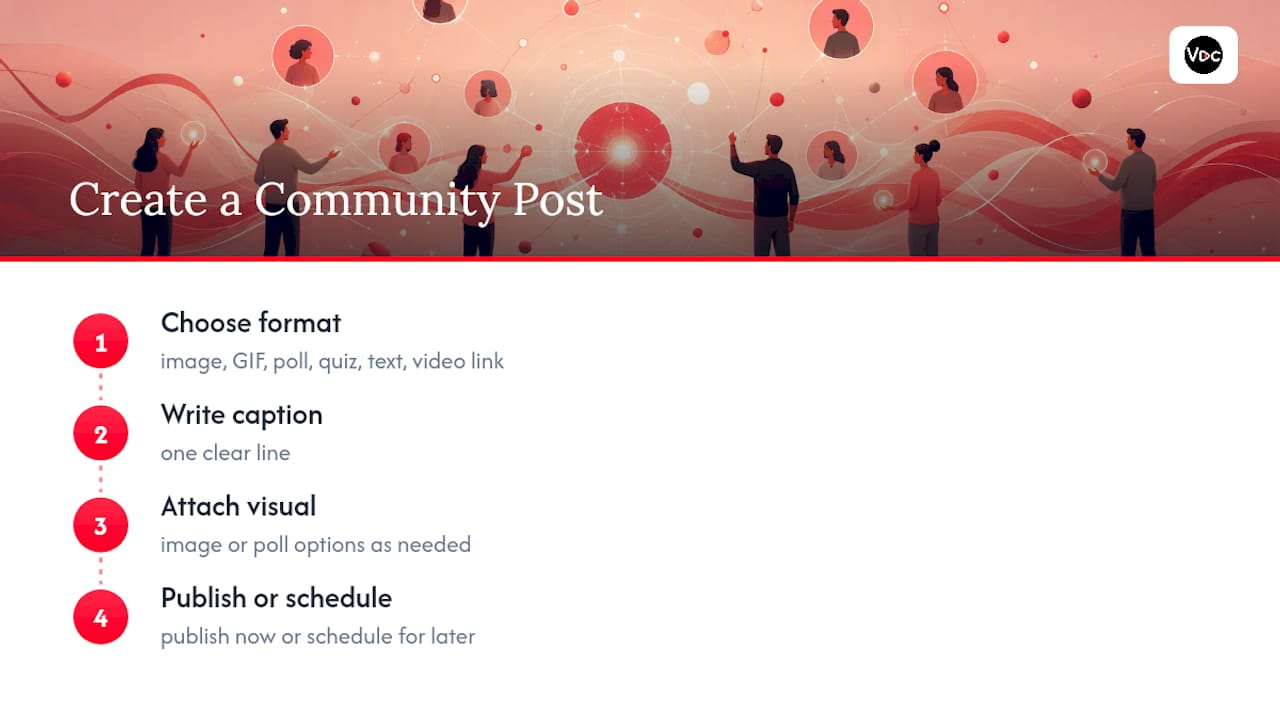
Posting takes under a minute once you know where to look. On desktop, open YouTube Studio, go to Content > Posts, and click the create button in the top corner. You’ll choose between an image, GIF, poll, quiz, text update, or a link to an existing video. Fill in your caption, attach your image or poll options, and publish, or schedule it for later if you’re batching content.
On mobile, tap the plus (+) icon at the bottom of the YouTube app and select “Create post” from the menu. The composer works almost identically to the desktop version, just optimized for a smaller screen. This makes it easy to post a quick behind-the-scenes photo straight from your phone without opening a laptop.
One detail worth knowing: YouTube removed the old 500-subscriber requirement for the Community Tab, so smaller and newer channels can access Posts as soon as the feature is enabled on their account. If you don’t see the tab yet, check back after your channel clears YouTube’s standard eligibility review, which usually resolves within a few days of channel setup.
Whichever device you use, the core workflow stays the same: pick a format, write one clear line, attach your visual if needed, and publish. The barrier to entry is nearly zero, which is exactly why so many creators underuse it.
What Successful Community Tab Posts Actually Look Like
The best-performing posts share a pattern: they ask something specific instead of something generic. Instead of “What do you think?”, strong creators write “Should the next video be about X or Y?” The specificity gives people an easy entry point to respond.
Educational and tutorial channels tend to lean on quizzes and polls tied directly to their subject matter, testing whether viewers already know a concept before a new video explains it. Gaming and entertainment channels lean harder into memes, reaction GIFs, and playful this-or-that polls that match their overall tone. Vlogging and lifestyle channels often get strong traction from raw, unfiltered photos paired with a short personal note, the kind of post that would feel out of place as a full video but works perfectly as a quick update.
A recurring theme across successful channels is the follow-up post. After a video performs well, top creators often post a quick thank-you or a question asking which part of that video people want expanded next. That single follow-up frequently becomes the seed for the next script.
Contests and giveaways, when used sparingly, also perform well, especially tied to milestones like subscriber counts or channel anniversaries. The common thread across all of these examples is that nothing gets posted without a clear reason attached. Every successful post either asks something, shows something, or gives something. Random filler rarely gets traction, no matter how polished the image looks.
Tailoring Community Posts to Different Audience Demographics
Your audience’s age, platform habits, and content expectations should shape what you post. Younger audiences on entertainment or gaming channels typically respond well to fast, visual formats: GIFs, memes, and quick this-or-that polls that take two seconds to answer. Longer text posts tend to get skipped entirely by this group.
Audiences on educational or B2B-adjacent channels behave differently. They respond better to quizzes, structured polls with real stakes (“Which topic should I cover in depth next month?”), and value-driven tip posts. This group is more likely to read a full paragraph if the payoff is genuinely useful information.
Older or more niche hobbyist audiences, think woodworking, personal finance, or gardening channels, often engage more with behind-the-scenes photos and personal updates than with flashy graphics. They’re subscribed for the person and the process, not the polish.
International audiences add another layer. If a meaningful chunk of your subscribers come from outside your primary language or region, keep captions simple and avoid idioms that don’t translate well. A poll with two clear images needs no translation at all, which is part of why it remains one of the most universally effective formats.
The practical move is to check your YouTube Studio analytics for audience demographics and rough geography, then match your post style, not just your topics, to what that specific group has historically engaged with.
Tying Community Posts to Your Actual Video Themes
The strongest Community Tab strategies treat posts as an extension of the video content calendar, not a separate side project. If your channel runs a recurring series, use posts to preview each new episode with a specific question tied to that episode’s theme, rather than a generic “new video is up” announcement.
Thematic integration also means reusing your content pillars inside post form. A finance channel that regularly covers budgeting, investing, and side income can rotate polls and tips across those same three pillars between uploads, keeping the tab thematically consistent with what subscribers came for in the first place.
Cross-referencing works well too. When a video mentions a tool, a book, or a past episode, a follow-up Community post can expand on that single mention without needing a whole new video. This turns a throwaway line from a script into two or three extra touchpoints across the week, all without additional filming.
Planning posts alongside your content calendar rather than as an afterthought keeps this consistent instead of reactive.
When Should You Post for Different Time Zones?
Timing matters less than consistency, but it still moves the needle. If your audience is concentrated in one region, check your Studio analytics for the hours when your subscribers are typically online, then post in that window. For a mostly US-based audience, early evening local time tends to catch people after work or school. For channels with a heavily European or Asia-Pacific audience, that window shifts several hours earlier relative to US time.
Channels with a genuinely global audience face a real tradeoff: there’s no single hour that catches everyone at their peak. The practical fix is to alternate timing across the week, posting once in a morning window and once in an evening window over a given stretch, then checking which slot pulled better impressions over a few cycles.
Scheduling ahead through YouTube Studio removes the pressure of hitting an exact time zone manually every single day, and it means you can plan a week’s worth of posts around your actual audience data instead of guessing.
Using the Community Tab During Growth Spurts or Slow Periods
During a genuine growth spurt, when a video goes unexpectedly viral or a channel picks up a wave of new subscribers, the Community Tab becomes a retention tool. New subscribers who found you through one video haven’t built a habit yet. A well-timed poll or a “welcome, here’s what this channel is about” post gives them a reason to stick around instead of drifting off after one watch.
The opposite situation, a slow period with no new upload for two or three weeks, is exactly when the tab earns its keep. A single behind-the-scenes update explaining what’s coming next keeps the channel visible in subscribers’ feeds without requiring a finished video. It signals that the channel is still active, which matters more to the algorithm and to viewer habits than most creators realize.
Growth phases and slow periods call for opposite emotional tones. Growth calls for momentum, contests, milestone shoutouts, and forward-looking teasers. Slow periods call for honesty, a short note about why uploads paused, paired with something small to engage with in the meantime.
A Faceless Creator’s Take on Making Posts Work
Posts are the perfect low-effort touchpoint for faceless creators, since you don’t need to show your face to keep the channel feeling alive. The trick is batching prompts during your scripting or thumbnail session, not scrambling for ideas on posting day. AI tools can speed up captions, generate thumbnail variants for testing, and draft post prompts in minutes instead of an hour.
— Arnas
Batch Your Community Tab Content With Voclify
This service gives faceless creators a faster path to the same weekly output described above, without the manual grind of building each post from scratch. The thumbnail generator produces multiple variants in minutes, ready to drop straight into a Community poll for A/B testing. The title generator works just as well for short caption variants when you’re testing which phrasing gets more taps. And the script generator can turn a rough idea into a quick tip post without pulling you away from actual video production.
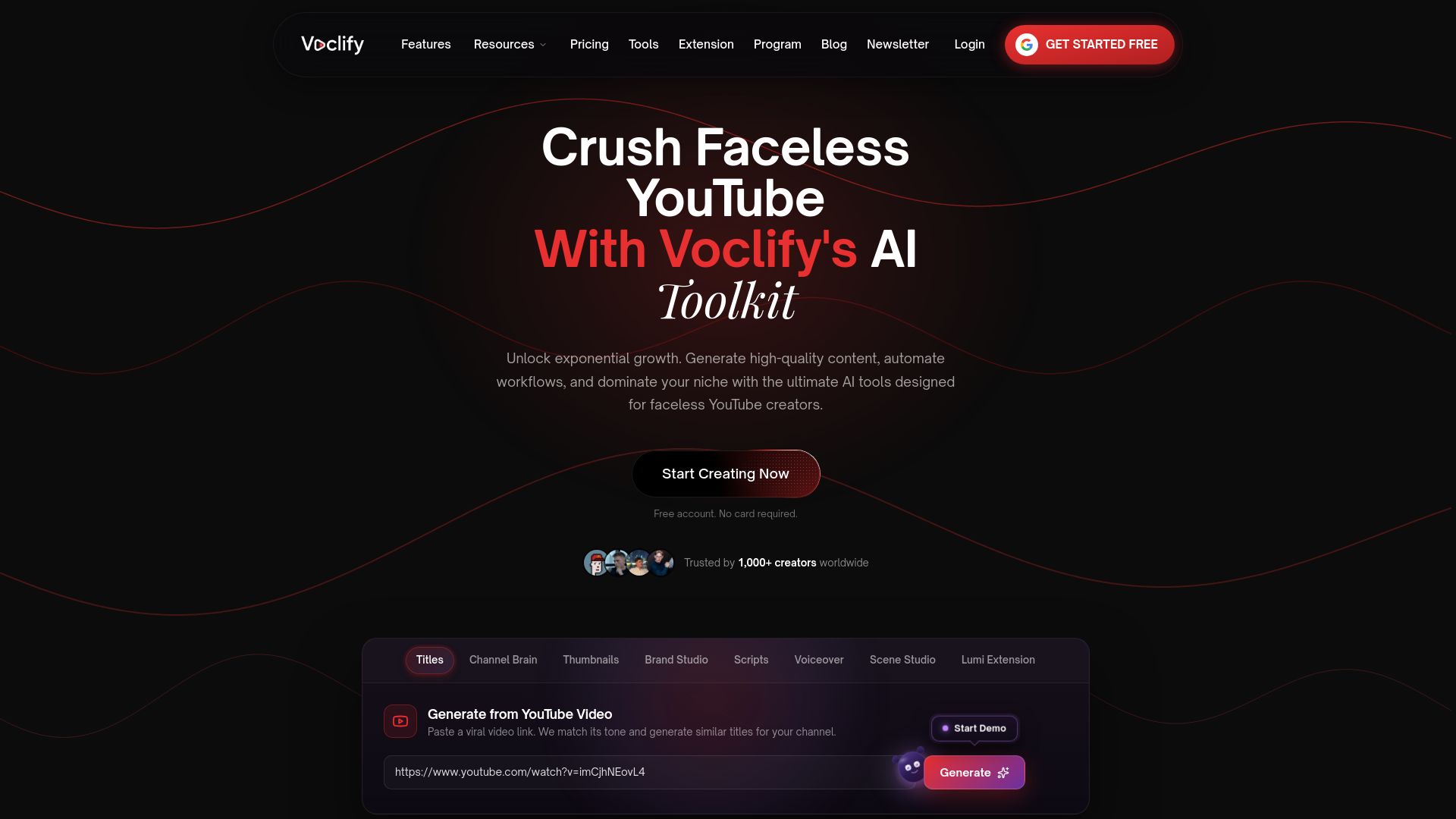
A simple weekly workflow looks like this: batch your thumbnail options and captions during your regular scripting session, schedule three or four posts across the week in YouTube Studio, then check response rates before your next filming block. If your channel handles complex, multi-platform promotion beyond the Community Tab, a partner like HarbourSide Digital can help manage that layer while you focus on content. For everything upstream of that, from thumbnail concepts to post prompts, try the thumbnail generator this week and see how much faster your batching session goes.
Sources
For the official mechanics of Posts, see YouTube’s own support documentation. For practical idea lists and cadence guidance, Buffer and CreatorsJet both offer detailed breakdowns worth bookmarking. For format-specific advice, vidIQ’s guide covers the full range of post types in more depth.
- Create a community post - YouTube Help
- YouTube Community Posts: What They Are and 11+ Ways to Use Them - Buffer
- YouTube Community Post Ideas for Creators | CreatorsJet
FAQ
What are some ideas for community activities?
Strong options include topic validation polls, thumbnail A/B tests, behind-the-scenes photos, quizzes tied to your niche, fan spotlights, and mini-contests tied to channel milestones.
What should you post on the YouTube Community Tab?
Post a mix of engagement content like polls and questions, value content like quick tips, and occasional promotion, in a balanced way so the tab never feels like one long ad.
What are community tabs?
The Community Tab, called Posts inside YouTube Studio, lets creators share polls, images, GIFs, text updates, quizzes, and video links directly with subscribers between uploads.
What does the community tab mean on TikTok?
TikTok doesn’t have a direct equivalent to YouTube’s Community Tab; its closest features are comments, Stories, and the algorithm-driven For You feed rather than a dedicated subscriber-only posting space.
Recommended

Get more of this in your Google results
Add voclify.io as a preferred source and Google shows you more of our articles in Search and AI Mode.