
Start with the two-column A/V script template if you’re producing anything with B-roll or editing help, and use a single-column conversational skeleton if you’re talking straight to camera. A Shorts skeleton handles vertical content on its own. Each format exists because it matches how the video actually gets built, and picking the right one saves you rewrites, faster editing, and cleaner handoffs to whoever cuts your footage.
TL;DR:
- Using a two-column A/V script template ensures clearer visual and audio coordination, speeding up editing and reducing misunderstandings during production.
- Finalizing payoffs first helps shape a structured flow, minimizing rework and ensuring each segment clearly supports the video’s main value.
- Timing rules vary by format: Shorts need quick hooks and early payoffs with captions, while longer videos require strategic re-hooks and step-by-step clarity.
- Precise, timestamped visual directions and flagging unused B-roll minimize ambiguity and streamline the editing process.
- AI can generate quick draft scripts from templates, but human review is essential to maintain natural voice and specific content accuracy.
What Is a YouTube Script Template, and Why Does the Two-Column A/V Format Matter?
A YouTube script template is a reusable structure that organizes what you’ll say and show before you hit record. It’s the difference between winging it and shooting with a plan. The two-column A/V format is the industry standard for a simple reason: it separates visuals from audio in side-by-side columns, one row per shot, so you always know what’s on-screen and what’s being said at the same moment.
This layout earns its place when you’re working with B-roll, handing footage to an editor, or running a faceless channel where the visual track carries as much weight as the narration. If you’re doing a straight-to-camera talking head with minimal cutaways, a single-column script usually gets the job done without the extra formatting.
The payoff of going two-column:
- Editors cut faster because visual direction is already spelled out
- Miscommunication drops since audio and visuals never get confused mid-script
- Repurposing content across formats gets easier when visuals are logged separately from narration
Three Copyable YouTube Script Templates You Can Use Today
Here are three video script templates you can paste directly into Google Docs or your script editor. Each one fits a different production style, so grab whichever matches your next upload.
- Two-column A/V skeleton. Build a table with “Visual” on the left and “Audio” on the right, then log timestamps down the side. A sample row:
0:00 to 0:08 | Close-up on hands opening laptop | "Here's the mistake killing your retention."Add a row per shot change. - Single-column conversational skeleton. Use plain placeholders: Hook, Intro, Body Beat 1 through Body Beat 5, Summary, CTA. Write each beat as a short paragraph, not a bullet, so it reads the way you’ll actually talk.
- Shorts skeleton. Frontload everything: Hook (first line only), Payoff (delivered fast), CTA (one sentence). Note captions and burn-in text directly under each line since most viewers watch muted.
The two-column version pulls directly from the same A/V structure StudioBinder recommends for high-performing channels, and Boords’ free template uses this exact layout if you want a pre-built file to copy instead of building your own table from scratch.
Pro Tip: Keep a fourth blank template saved as your “master” version with every beat type listed. When you need a Shorts cut of a long-form video, copy the master and delete rows instead of starting over.
How Do You Actually Write From a Script Template Without Getting Stuck?
Blank-page syndrome usually hits because writers try to draft in order: hook first, then intro, then body. Flip that. Professional scriptwriters recommend a payoffs-first writing order, and it works because you can’t write a good hook until you know what the video actually delivers.
The four-pass approach looks like this:
- Pass 1, research and define payoffs. Write down the two or three concrete takeaways the viewer walks away with. No fluff, just the actual value.
- Pass 2, architect the structure. Slot those payoffs into body beats, deciding how many setup-tension-payoff loops the video needs.
- Pass 3, draft the tension. Write the setups and complications that make each payoff land harder.
- Pass 4, write the hook last. Now that you know the real promise of the video, write an opening line that matches it exactly.
Writing payoffs first also cuts rework, since you’re not rewriting an intro every time the body content shifts direction.
Before you shoot, run through a short readiness checklist:
- Every row or beat has a timestamp estimate
- B-roll notes are attached wherever the audio references something visual
- Chapter markers are drafted for anything over five minutes
Pro Tip: If a body beat doesn’t tie back to one of your original payoffs, cut it. Tangents are the most common reason drafts run long and retention drops mid video.
What Are the Timing Rules for Shorts, Tutorials, and Listicles?
Format dictates pacing, and ignoring that is the fastest way to lose viewers in the first ten seconds. OutlierKit’s format-specific structure lays out the timing differences clearly, and they’re worth memorizing rather than guessing at.
| Format | Hook timing | Payoff/re-hook timing | Key rule |
|---|---|---|---|
| Shorts | 1 to 3 seconds | Payoff early in the video | Captions are required, not optional |
| In-stream/long-form | 5 to 15 seconds | Re-hook at 60 to 70% of runtime | Build multiple setup-tension-payoff loops |
| Tutorials | 5 to 15 seconds | Steps numbered on-screen throughout | Aim for checklist completion, not just watch time |
| Listicles | 5 to 15 seconds | Tease the best item early | Consider delaying the final verdict to hold attention |
In-stream videos with 10 to 15 minute runtimes benefit from a re-hook around the 60 to 70% mark, which recovers viewers who start drifting mid-video. Tutorials do best when you number steps visually, since a tutorial script structure built around checklist completion keeps people watching to confirm they didn’t miss a step.
How Do You Write Production-Ready Visual Directions in Your Script?
Your visual column is a production document, not decoration. Spell out camera angles, specific B-roll shots, and exactly when on-screen text appears, because vague directions like “cutaway here” force your editor to guess.
Timestamping every row and marking chapter breaks in advance turns your script into a usable YouTube chapters list, which is worth doing even for videos under ten minutes. Studio operators who treat scripts as production briefs for editors report fewer revision rounds, since ambiguity gets resolved on the page instead of in the edit bay.
Before you shoot or hand off footage:
- Confirm every visual cue lists a specific shot, not a general idea
- Mark where on-screen text needs to appear and what it says
- Flag any B-roll you don’t already have so you can capture it same-day
Real Script Fragments and How AI Speeds Up the Template Process
A listicle hook might read: “Number three on this list is the one nobody talks about, and it’s the reason your last video underperformed.” A tutorial step fragment: “Step 2, open your settings panel, click ‘Advanced,’ and toggle this one option most creators skip.” A Shorts hook-payoff line: “You’re formatting your description wrong, here’s the fix in ten seconds.”
AI-generated drafts speed up templated production, but a human pass that confirms the payoffs-first map, edits for voice, and swaps in unique examples is what keeps the script from sounding generic.
AI tools can generate script drafts fast enough to fill a two-column template in minutes, but the review pass still matters. Pro Tip: Read your AI draft out loud before shooting. If a line sounds like it came from a robot, it probably did.
Why Templates Change How Fast You Actually Produce Content
I’ve watched channels cut their scripting time in half just by locking in one template instead of reinventing structure every upload. The real gain isn’t the template itself, it’s what you do with the retention data afterward.
Once you have a few videos out, go back and check where viewers dropped off, then adjust your template’s beat lengths accordingly. Adapt the skeleton to your channel’s voice, not the other way around.
— Arnas
Automate Your Script Workflow With Voclify
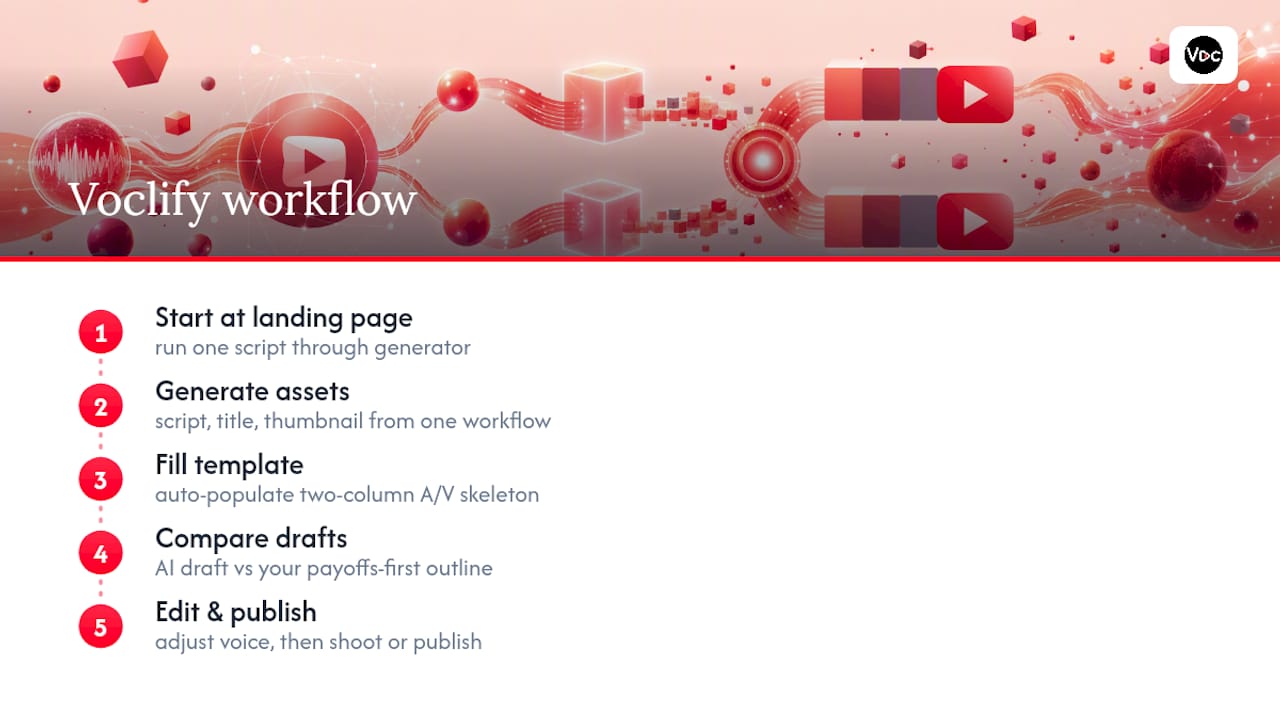
Building a template solves structure, but writing a full script from scratch every week is still the biggest time sink for most faceless channels. Voclify generates scripts, titles, and thumbnails from the same AI workflow, so you can fill a two-column A/V template in minutes instead of hours and spend your saved time on editing or publishing more often.
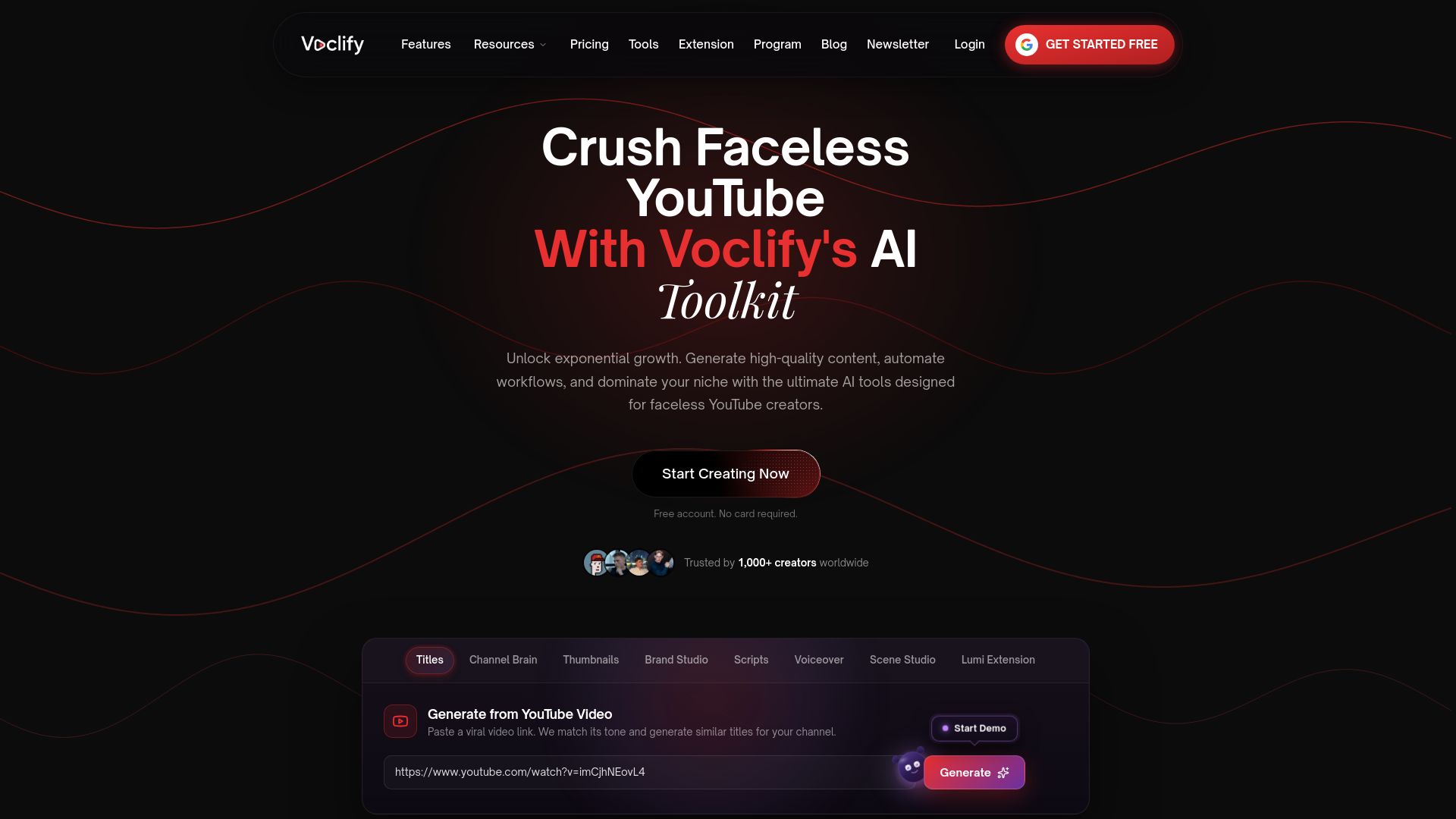
The platform also handles the visual side of your uploads. If your script calls for strong on-screen text or a scroll-stopping thumbnail, Voclify’s thumbnail generator and thumbnail quote generator pull directly from styles that already work on similar channels, so you’re not designing from a blank canvas either. Many creators have used AI toolkits to batch scripts and thumbnails together instead of treating them as separate jobs.
If you want to test the workflow before committing to a plan, start at the Voclify landing page and run one script through the generator using the two-column skeleton above. Compare the AI draft against your own payoffs-first outline, then edit for voice before you shoot.
Where to Find More Script Templates and Guides
For deeper reading, Boords and StudioBinder both offer downloadable two-column files, while TechSmith’s A.A.A.A. template covers hook-to-CTA structure in more depth.
Sources
- Rowell — Scriptwriting (BMCC OpenLab)
- Humble&Brag — The YouTube Script Template We Use on Every Client Video (With Framework)
- StudioBinder — Script Writing on YouTube Examples | Advanced Guide in 2026
- Boords — Free Video Script Template
- TechSmith — How to Write a Script for a Video (Free Template!)
Recommended

Get more of this in your Google results
Add voclify.io as a preferred source and Google shows you more of our articles in Search and AI Mode.


