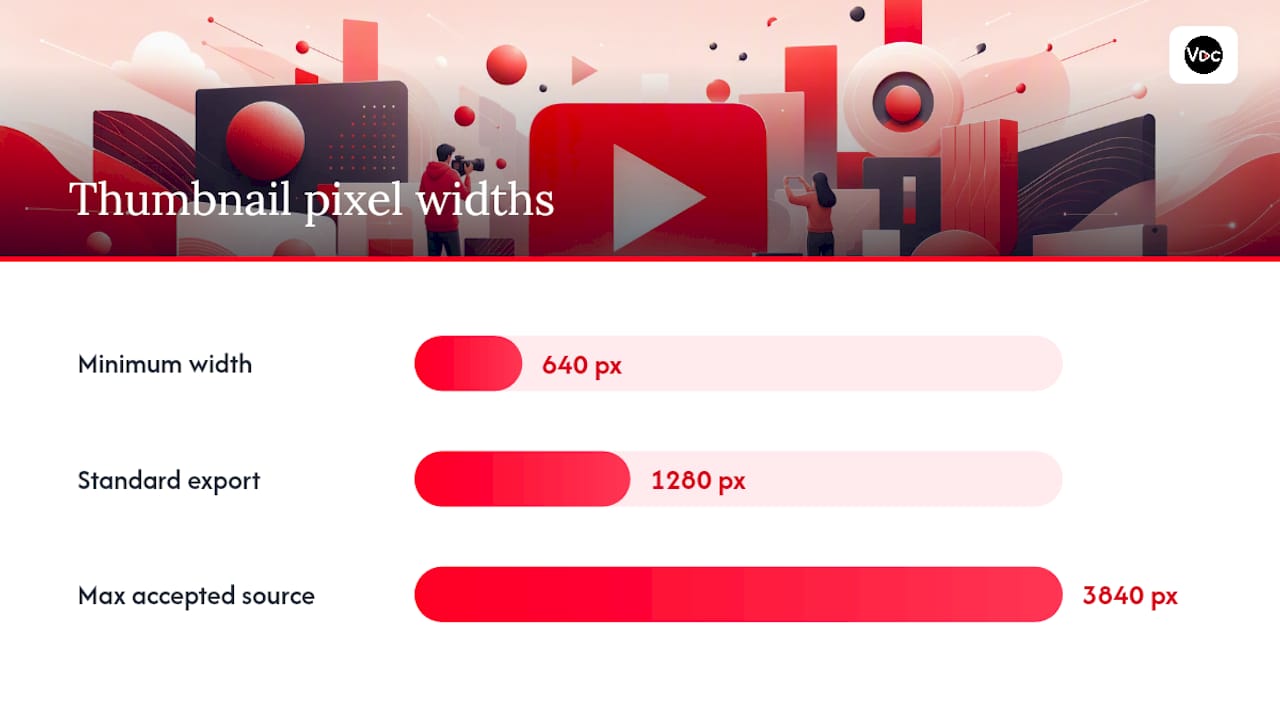
Upload a 1280×720 pixel image at a 16:9 aspect ratio, minimum width 640 px, saved as JPG or PNG. Keep it under the device-dependent size limits, smaller for mobile and larger for desktop uploads. That’s the whole spec. Shorts and a few mobile surfaces crop things differently, which I’ll get into, but for a standard video, that resolution and format is all you need to get right.
TL;DR:
- Thumbnails should be designed at 1280×720 pixels with high-contrast, bold text and a single focused subject to ensure clarity at small sizes.
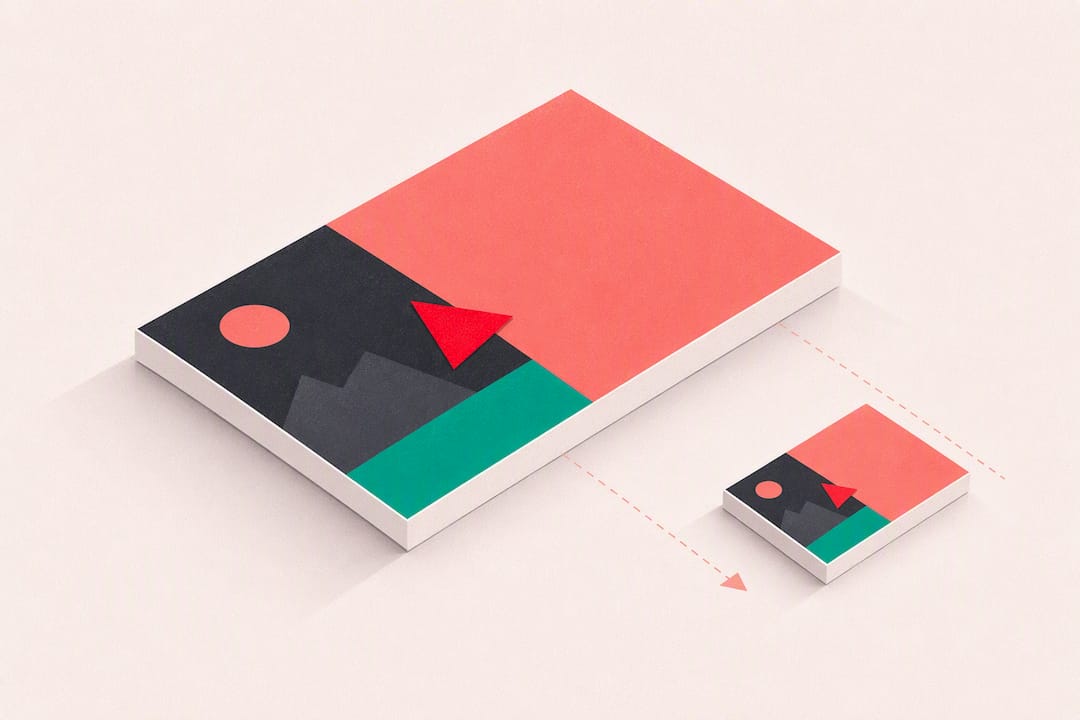
- YouTube displays different thumbnail sizes depending on the context, with the maximum resolution used on the watch page, but most viewers see it at around 246×138 pixels.
- Vertical content like Shorts requires a 9:16 aspect ratio and crop behavior that differs from standard 16:9 thumbnails, so framing must be adjusted accordingly.
- Re-export your thumbnails as JPG at 80-90% quality and compress them post-design to meet the mobile file size limit of roughly 2 MB.
- Using an AI-powered thumbnail generator can streamline creating consistent, properly sized variants for frequent uploads, saving time on manual resizing and testing.
YouTube Thumbnail Dimensions and File Requirements Explained
The official YouTube spec is short on purpose: 1280×720 pixels, 16:9 aspect ratio, minimum width 640 px. Anything smaller than that gets stretched or rejected outright, and a blurry thumbnail kills click-through before your title even gets read.
Here’s what actually matters when you’re exporting:
- Resolution: 1280×720 pixels (the standard), 640 px minimum width
- Aspect ratio: 16:9, matching the video player itself
- File formats: JPG, PNG, GIF, or WebP
- File size: roughly 2 MB on mobile uploads, up to 50 MB on desktop
Pro Tip: Export photos as JPG at high quality settings to reduce file size without noticeable quality loss, helping to meet mobile upload limits.
YouTube also accepts source files as large as 3840×2160 and downscale them internally. A 4K source doesn’t buy you a sharper thumbnail on the platform, since everything gets compressed to the same served sizes anyway. Design at 1280×720 and skip the temptation to upload something bigger “just in case.”
How YouTube Actually Displays Your Thumbnail to Viewers
Nobody sees your thumbnail at full resolution. YouTube generates several size variants from your upload and serves whichever one fits the surface, and the YouTube Data API’s thumbnails documentation lays out exactly what those variants look like.
| Variant | Typical size | Where it shows up |
|---|---|---|
| default | 120×90 | Old embeds, some API calls |
| medium (mqdefault) | 320×180 | Suggested videos, some mobile feeds |
| high (hqdefault) | 480×360 | Search results, related videos |
| standard | 640×480 | Legacy players, older layouts |
| maxres | 1280×720 | Watch page, large previews |
Every one of these gets re-encoded from your master file, so the version a viewer scrolls past is smaller and more compressed than what you exported. That’s why measurement-driven testing puts real-world display sizes closer to 246×138 up to 320×180 in most feeds. Design at 1280×720, but judge the final result at those smaller dimensions, because that’s the size doing the actual work of earning a click.
Shorts, Vertical Video, and Podcast Thumbnail Differences
Standard 16:9 rules don’t carry over to vertical content, and treating them the same is a common mistake.
- Shorts: built for a 9:16 vertical frame, so plan for 2160×3840 pixels with a minimum height of 640 px
- Mobile crop behavior: YouTube sometimes swaps a 16:9 custom thumbnail for a 4:5 crop on certain mobile surfaces, cutting off the left and right edges of a horizontal design
- First-frame reuse: for Shorts specifically, the opening frame often doubles as the share preview, so it needs to hold up on its own even without a custom thumbnail overlay
- Podcast playlists: cover art tends to follow 1:1 square guidance, closer to album art than a video thumbnail
If your channel runs both long-form and Shorts, don’t reuse one template across formats. Check the Shorts strategy guide if vertical content is a growing part of your upload mix, since the crop behavior alone changes how you should frame text and faces.
Thumbnail Design Rules That Hold Up at Small Sizes
Getting the pixel dimensions right is the easy part. Making a thumbnail readable once it’s shrunk down to 246×138 in someone’s feed is where most creators lose the click. A few rules make the difference.
- Keep critical elements out of the bottom right corner. That’s where YouTube overlays the duration badge, and anything you place there gets covered.
- Avoid the far edges entirely. Mobile’s 4:5 crop can slice off the left and right margins of a 16:9 design, so keep faces, text, and logos centered.
- Use bold, high-contrast text and cap it at four or five words. Anything longer turns into an unreadable smear at preview size.
- Favor a single close-up face or one clear subject over a busy composition with multiple focal points.
- Shrink your draft to 25% before finalizing it. If you can’t tell what it is from three feet away from your screen, viewers scrolling on a phone definitely can’t either.
- Preview in both the standard 16:9 crop and the 4:5 mobile crop before you commit to a final export.
Pro Tip: Run your export through a compression tool like TinyPNG or Squoosh after saving as JPG at 80 to 90% quality. That combination almost always lands you comfortably under the mobile 2 MB ceiling without any visible loss in sharpness at the small sizes viewers actually see.
Uploading and Fixing Common Thumbnail Errors
Uploading a custom thumbnail in YouTube Studio takes under a minute once your file is ready. Open your video’s details page, click the thumbnail box, upload your image, and save. One catch: YouTube requires account verification before it’ll let you set a custom thumbnail at all, so confirm that’s done before you’re troubleshooting the wrong problem.
Common upload failures and how to fix them:
- “File too large” on mobile: you’re likely over the roughly 2 MB mobile cap. Re-export as JPG at 80 to 90% quality, or finish uploading from desktop where limits run higher.
- Blurry or stretched thumbnail: the source was probably under the 640 px minimum width. Rebuild at 1280×720.
- Upload rejected outright: check that you’re saving as JPG, PNG, GIF, or WebP, not a format YouTube doesn’t accept.
- PNG uploads timing out or failing: complex PNGs with lots of detail sometimes bloat past size limits. Flatten the image or switch to JPG.
A Faster Way to Generate and Test Thumbnails
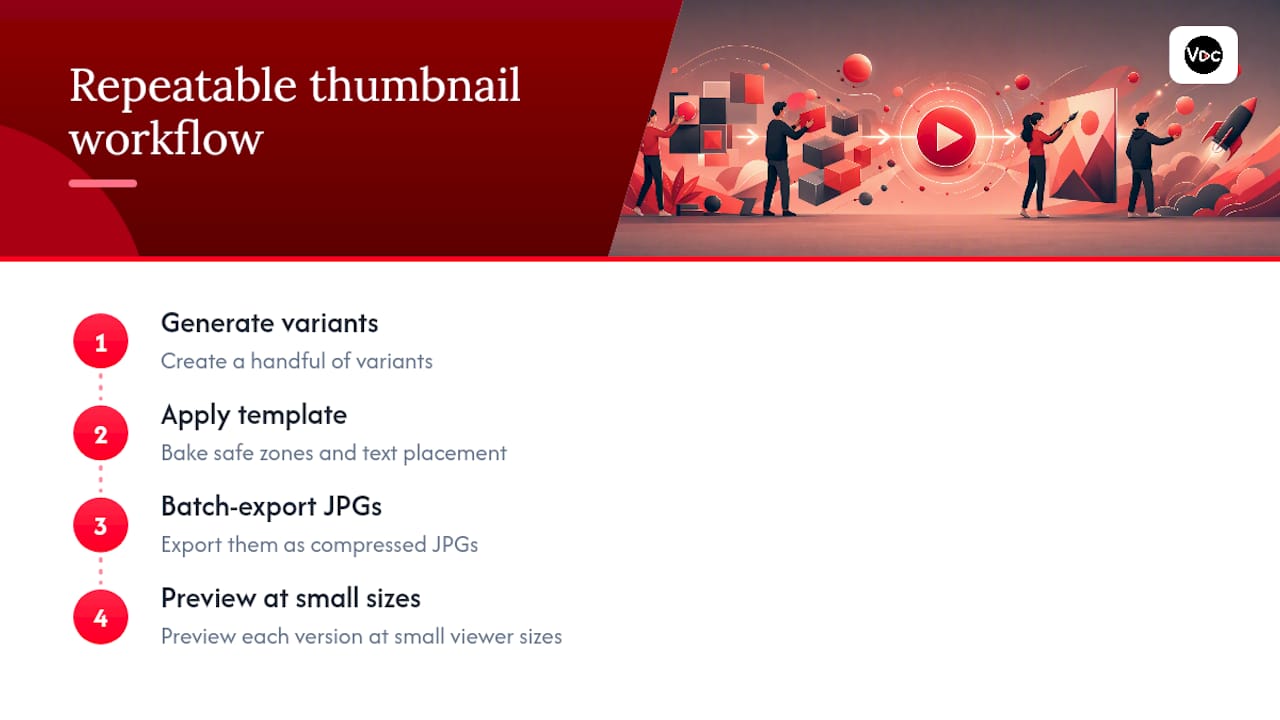
Designing one thumbnail that clears every safe zone is manageable. Doing it for every upload, week after week, is where most creators start cutting corners. A repeatable workflow helps more than any single design trick.
Generate a handful of variants first, batch-export them as compressed JPGs, then preview each one at the small sizes viewers actually scroll past. Templates matter here too. When your safe zones and text placement are already baked into a template, you’re not re-solving the corner and crop problem on every single video.
Voclify’s AI thumbnail generator builds that workflow around style-consistent templates, which is part of why the platform has supported creators managing channels that have collectively pulled in millions of subscribers. For a deeper look at tool options, the guide to AI thumbnail tools breaks down what’s worth trying.
Why the Small-Size Test Matters More Than the Spec
Every creator gets the 1280×720 spec right eventually. It’s printed on YouTube’s own help page. What separates thumbnails that pull clicks from ones that don’t is whether the creator ever looked at their design at the size it’s actually viewed.
I’d bet most channels never shrink their thumbnail before publishing. They design at full resolution, admire the detail, and upload. Then it gets served at 320×180 in someone’s feed and all that detail turns into noise. Test small, every time, before you hit publish. And pair that thumbnail with a title that reinforces the same idea instead of repeating it. A strong title and thumbnail combination beats a great thumbnail carrying a redundant title on its own.
— Arnas
Try Voclify’s Thumbnail Generator for Faster Iteration
Manually resizing, cropping, and re-exporting thumbnails for every upload eats time you could spend on the next video. Voclify’s AI thumbnail generator builds variants at the correct 1280×720 spec automatically, with templates that keep your safe zones and text sizing consistent across an entire channel instead of reinventing the layout each time.
This isn’t a required step to publish on YouTube. It’s a shortcut for creators who’d rather spend their time on scripts and thumbnails that actually convert rather than fighting export settings. If you’re producing multiple videos a week, pair the thumbnail generator with Voclify’s title generator to build both pieces from the same workflow. Start with a free account and generate your first batch of thumbnail variants in a few minutes.
Sources
- Add custom thumbnails on YouTube - Computer - YouTube Help
- YouTube Thumbnail Size in 2026 — Exact Dimensions, File Limits, and What Actually Matters
FAQ
Is YouTube thumbnail size 1920×1080 or 1280×720?
The recommended size is 1280×720 pixels. You can upload a larger source file and YouTube will downscale it, but there is no clarity benefit to doing so since served sizes top out at 1280×720 for maxres.
Are YouTube thumbnails 16 by 9?
Yes, standard video thumbnails use a 16:9 aspect ratio, matching the video player itself. Shorts are the exception, using a vertical 9:16 frame instead.
Can I upload a 1920×1080 thumbnail to YouTube?
Yes, as long as it meets the format and file-size requirements, since YouTube accepts source files up to 3840×2160 and resizes them internally. It gets compressed down to the same served variants as a 1280×720 upload, so there’s no practical advantage to the larger file.
What’s the minimum thumbnail size YouTube will accept?
The minimum width is 640 pixels, still at a 16:9 ratio. Anything below that risks looking soft or pixelated once it’s displayed in search results and suggested feeds.
Why does my thumbnail look different on mobile than on desktop?
Mobile surfaces sometimes crop a 16:9 thumbnail down to a 4:5 ratio, cutting off the left and right edges. Keeping text and faces centered avoids losing key elements to that crop.
Can Voclify help me create thumbnails at the correct dimensions?
Yes, Voclify’s AI thumbnail generator builds variants at the standard 1280×720 spec with templates designed to keep safe zones and text sizing consistent. It’s built specifically for creators managing regular upload schedules who need speed without sacrificing legibility at small preview sizes.
Recommended

Get more of this in your Google results
Add voclify.io as a preferred source and Google shows you more of our articles in Search and AI Mode.